IPTV on Roku: mirroring and casting
Plenty of Canadian living rooms already have a Roku plugged in, and it can still show your channels. The trick is to let a phone run the stream and use the Roku as the screen. This page covers the three methods that work, starting with the most dependable.
Short answer
Roku keeps its platform locked and hosts hardly any IPTV apps, so here the phone does the heavy lifting. Install Web Video Caster on your phone, add its free receiver to the Roku, paste our M3U link and cast. iPhone owners with a 4K model can use AirPlay instead.
- Device
- Express, Streaming Stick, Ultra and Roku TV models
- Time needed
- About 10 minutes
- Difficulty
- Medium
- Methods covered
- Web Video Caster, AirPlay, Streaming Store player
- What you need
- Your M3U link, plus a phone on the Roku's Wi-Fi
Your app, step by step
We suggest Web Video Caster. Switch tabs to see the other apps, one full walkthrough per tab.
Free app You type it in. No cost to install on the phone, and the TV receiver is free too. Look at the store listing for any paid add-ons.
-
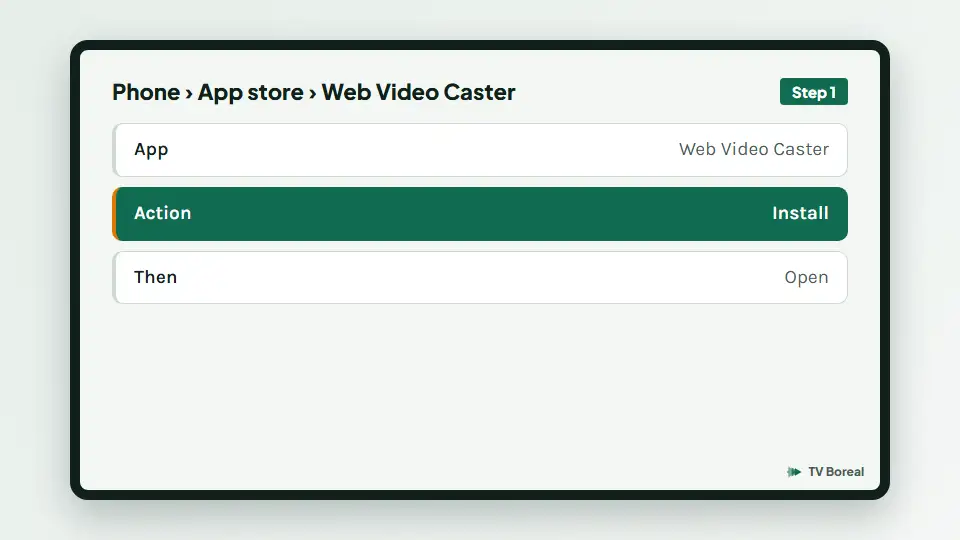
Put Web Video Caster on your phone
Download Web Video Caster to the phone through its app store, Apple or Google, and launch it once.
-
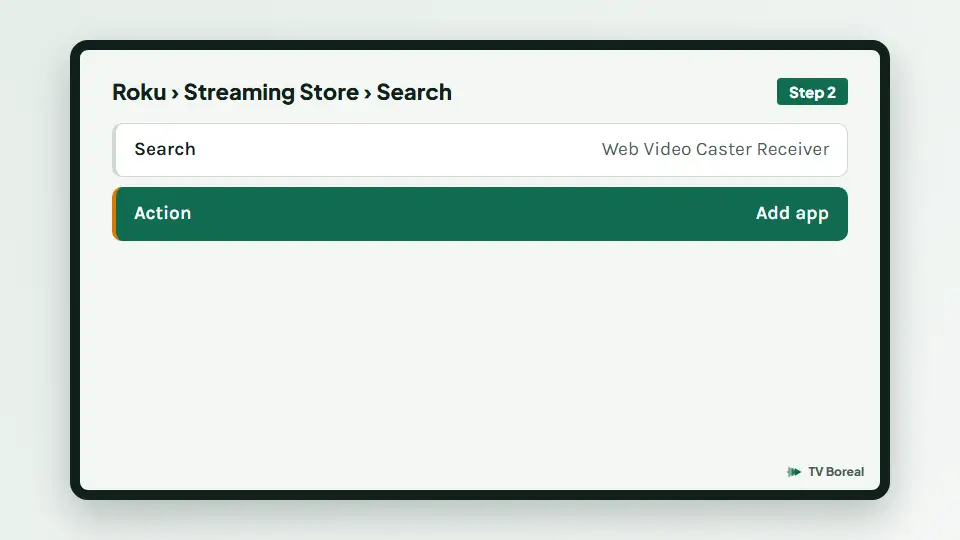
Install the receiver on the Roku
With the TV remote, go into the Streaming Store, look up Web Video Caster Receiver and choose Add app.
-
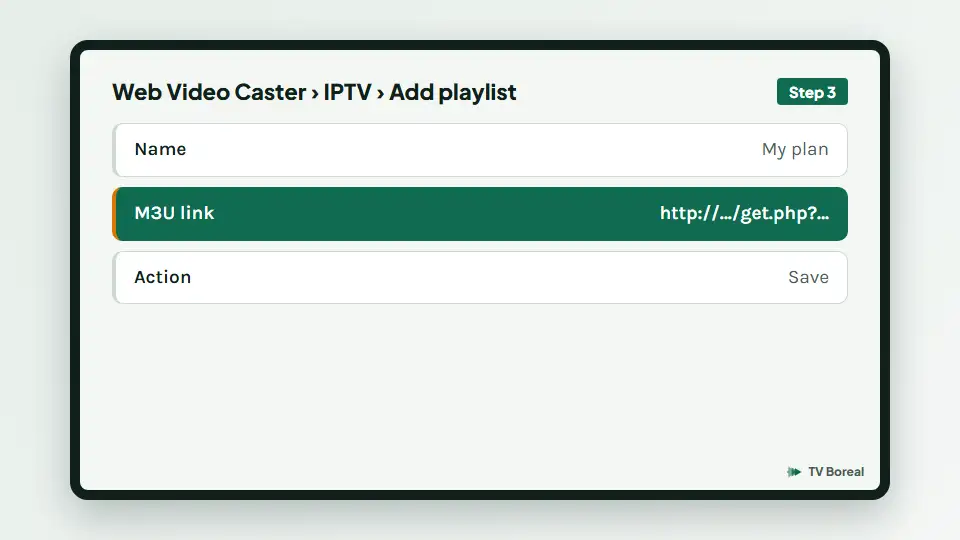
Paste our M3U link into the phone app
On the phone, open the app's menu, tap IPTV, then Add playlist. Paste in the M3U link we sent.
-
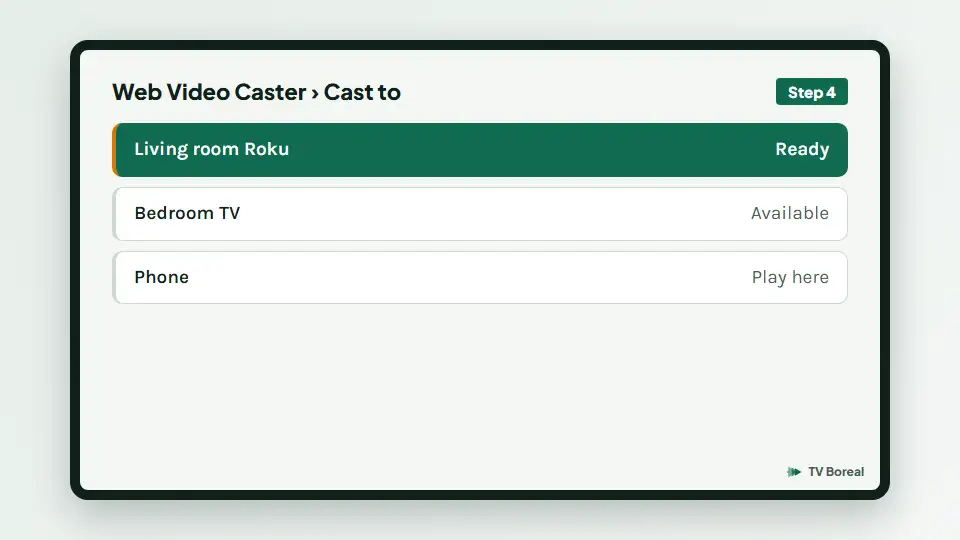
Cast to the Roku and pick a channel
Tap the cast icon, select your Roku, and choose a channel. Keep the phone app open throughout the show.
Free app You type it in. Already built into the iPhone and Roku 4K models. You need an IPTV app on the iPhone.
-
Switch AirPlay on for a 4K model
On a Roku 4K model, go to Settings › Apple AirPlay and HomeKit › AirPlay and turn it On. The iPhone and the Roku must use one Wi-Fi network.

-
Start a channel on the iPhone
In an IPTV app on the iPhone, sign in with the login we sent and begin playing a channel.

-
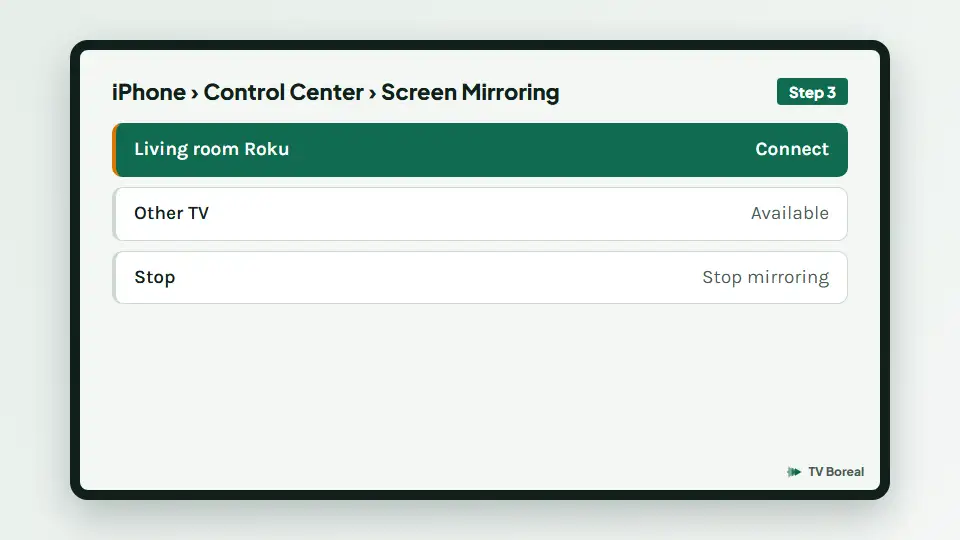
Mirror the iPhone to the Roku
Swipe into Control Center, tap Screen Mirroring and pick your Roku. The first time, type the code shown on the TV.
Free app You type it in. Availability and price change often. Read the listing in the Streaming Store before adding one.
-
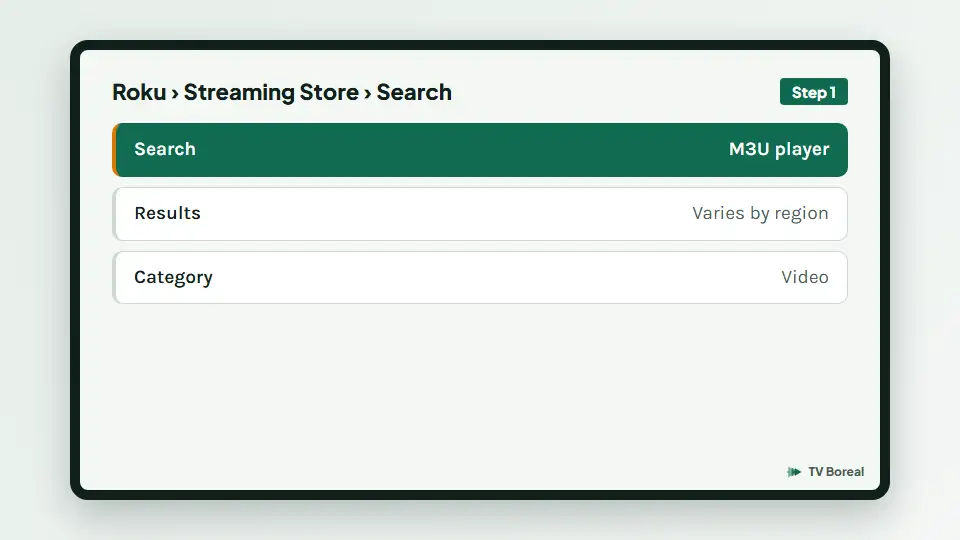
Look through the Streaming Store
Open the Streaming Store and search for an M3U or IPTV player. Read its listing before adding anything.
-
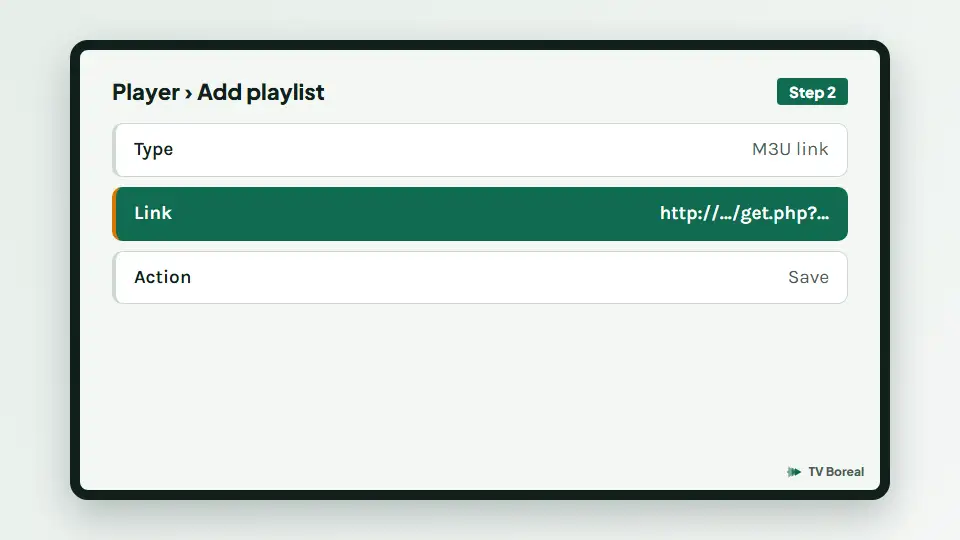
Enter the login in the player
Launch the player and add our M3U link, or the Xtream Codes server, username and password, whichever it asks for.
-
Let the list load, then watch
Once the channel list has loaded, open a channel.
Before you start
Have these four things lined up before you begin.
- The Roku connected to your TV, with your phone joined to the Roku's Wi-Fi.
- A dependable line, with 25 Mbps or better for 4K. Casting means two wireless hops, so read IPTV on Wi-Fi or Ethernet if the signal is weak.
- The WhatsApp message with your login, including the M3U link. No plan yet? Every method here works with any option on our plans and prices page, from $79.99 CAD for a year on one device.
- About 10 minutes.
It is a one-off setup. Afterwards you open the app and cast.
What a Roku can and cannot do
A Roku is a closed platform. Sideloading is not allowed, and the Streaming Store offers only a handful of players able to take an M3U link or Xtream Codes details. That handful shifts all the time, so naming one would send you chasing an app that might disappear.
That is why casting from your phone is the dependable route. The phone handles the stream and the Roku only displays the picture. It runs on every model and does not lean on the store. The honest catch: channels arrive, but a full on-screen guide and recording do not. For those, a Fire TV Stick or an Android box on a spare HDMI input gives you everything.
Choosing a method
Begin with Web Video Caster. It works on every Roku, it is the steadiest of the three and the store does not affect it. AirPlay suits a home with an iPhone that already runs an IPTV app, paired with a Roku 4K model. Our iPhone and iPad guide shows which apps fit. Android phone users can find a player in the Android phone guide. Turn to a Streaming Store player only when you find one you trust, because that list keeps changing.
| Method | Works on | TV guide on the TV |
|---|---|---|
| Web Video Caster | Every Roku model | No, it stays on the phone |
| AirPlay from iPhone | Roku 4K models | Mirrors what the iPhone app shows |
| Streaming Store player | Depends on the listing | Depends on the app |
Careful: Read any Streaming Store listing before adding it, and avoid apps asking for money ahead of a working M3U link. Store players come and go, so a tutorial from last year might point at a vanished app.
Habits that keep casting smooth
A few small habits remove most casting trouble.
- Rename the Roku in its Settings to something obvious, like Den TV, for easy spotting when casting.
- Keep phone and Roku on one Wi-Fi band, 5 GHz if you can.
- Update the receiver app whenever the Streaming Store offers a new version.
- Switch off battery saving for Web Video Caster on the phone.
- If a stick reboots by itself, give it a wall outlet instead of a TV USB socket.
Tip: Copy our M3U link on the very phone that will cast, then paste it whole, trimming any trailing space. Still stuck? A screenshot on WhatsApp lets us try the link ourselves.
Fixing common Roku problems
Most casting hiccups come from the network, the phone's power saving or a pasted link.
The Roku does not appear in the cast list
Both devices must be on a single Wi-Fi network, and many routers also want a single band. Check that Web Video Caster Receiver is on the TV, open it once, then tap cast again. Power-cycling the phone and Roku settles nearly every case.
Casting stops when the phone locks
Casting leaves the phone app steering playback. So leave it open, and in phone settings exempt it from battery saving and background restrictions. Charging the phone during the show also stops it from closing apps.
The picture stutters or freezes
A second wireless link shows a weak signal fast. Shrink the gap between router and Roku, jump to 5 GHz, and pick a channel's lighter quality. Got a TV with an Ethernet socket? Plugging in a cable beats every other fix. The IPTV buffering post has more ideas.
AirPlay is missing
Only 4K Roku models carry AirPlay, and their software must be current. Run Settings, System, System update, then look at Settings › Apple AirPlay and HomeKit › AirPlay, which must say On. Restart the Roku and the iPhone, then try again.
The M3U link will not load
Copy the link afresh from our message and paste the whole thing, with no trailing space. Still an error in the phone app? A WhatsApp screenshot lets us try the link from here.
There is no TV guide
Only video crosses over during a cast, leaving the guide behind on your phone. Roku sets that limit, your plan does not. A dedicated player on the TV gives you the full guide, and what is EPG explains what you gain.
When a Fire TV Stick makes more sense
Watching most days? Then a stick in a second HDMI port soon earns its keep. On it, a remote-friendly player brings the complete guide and favourites, and some apps add recording. Casting gets you going, yet the phone stays tied to it until bedtime.
Many households own both, flipping the TV input when live TV calls. Setting up with our Fire TV Stick guide takes about ten minutes, the Samsung and LG smart TV guide handles sets that have built-in app stores, while the setup guides hub gathers the rest.
Questions about this setup
What is the most reliable way onto a Roku?
Casting from a phone with Web Video Caster. Every Roku model supports it, with no dependence on the Streaming Store. You paste our M3U link into the phone app, tap cast and choose the TV. What you give up: the guide lives on the phone, not on the big screen.
Can a Roku show a TV guide?
Not a full one when casting. Only the video travels to the TV, so your guide sits in the phone app as the Roku shows the picture. Blame the platform, not your plan. Want the whole guide plus recording on screen? a Fire TV Stick or an Android box is the better tool.
Is Web Video Caster free?
Installing it on the phone costs nothing, and the Roku receiver is free as well: find Web Video Caster Receiver in the Streaming Store and select Add app. Paid extras may exist, so read the store listing. Any such payment reaches its developer and has nothing to do with your TV Boreal plan.
Does casting use up a device on my plan?
Just one. Your phone is the source, so a cast uses one device slot. Leave the phone app running throughout, because it drives playback. Should another person be watching elsewhere simultaneously, you need a 2-device or 3-device plan.
Does AirPlay work on every Roku?
No. AirPlay needs a Roku 4K model running recent software, and an iPhone with an IPTV app. Turn it on under Settings › Apple AirPlay and HomeKit › AirPlay. On other models, or with an Android phone, Web Video Caster is the method to use, since it works on every Roku.
Which Streaming Store player should I add?
We do not name one, because these players come and go and their availability and price change often. Search the store for an M3U or IPTV player, study the listing, and walk away from apps demanding money before the M3U link even loads. Casting remains steadier.
More setup guides
IPTV on a Firestick: set it up step by step
IPTV on a Firestick, from an empty home screen to a playing channel.
IPTV on iPhone and iPad, step by step
Live TV, movies and series fit nicely on an iPhone or iPad, whether you sit on the couch, in the kitchen or at the cottage.
IPTV on an Android phone, step by step
The phone in your pocket is often the quickest screen to get going: no remote, no HDMI cable, just an app.