IPTV on an Android phone, step by step
The phone in your pocket is often the quickest screen to get going: no remote, no HDMI cable, just an app. This page covers four Android players, listed in our suggested order. Work through one, and your channels, movies and series stay a tap away from then on.
Short answer
Phones and tablets from Android 5.0 up can play your channels. Install IBO Player or ELK Player and send us the Device ID and Key, or pick a free player and paste the Xtream Codes login yourself. Count on about 5 minutes.
- Device
- Android phones and tablets (Android 5.0 or newer)
- Time needed
- About 5 minutes
- Difficulty
- Easy
- Apps covered
- IBO Player, ELK Player, TiviMate, IPTV Smarters
- What you need
- Your login from WhatsApp
Your app, step by step
We suggest IBO Player. Switch tabs to see the other apps, one full walkthrough per tab.
Paid app We activate it. Nothing to pay for the first 7 days. After day 7, its developer bills a yearly or lifetime licence for every device.
-
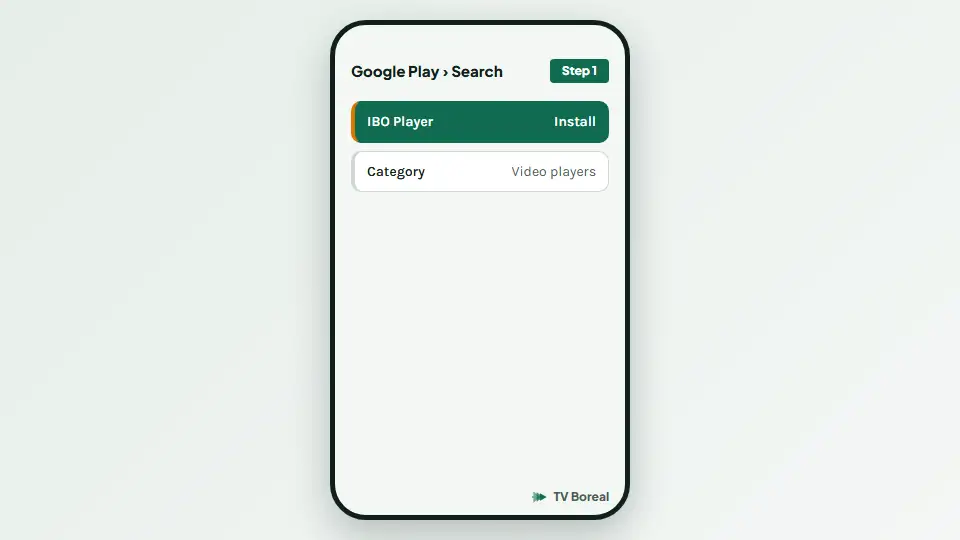
Get IBO Player onto the phone
Google Play may list IBO Player for your device, and if so, install it there. If not, the developer's downloads page has the Android APK. Names in the store are easy to confuse: the right one links to iboplayer.com.
-
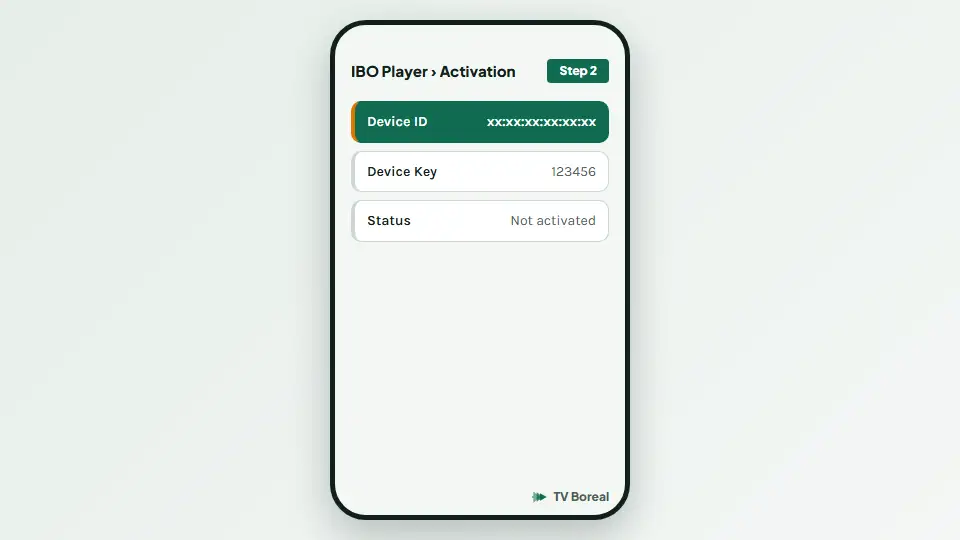
Capture the two activation codes
Launch the app. Straight away it displays a Device ID and a Key. Screenshot that screen, because the picture is what we need from you.
-
Pass the screenshot to us on WhatsApp
Attach it in your chat with us and write IBO Player beside it. We connect that phone to your plan and answer once it is done, normally a few minutes later.
Send it on WhatsApp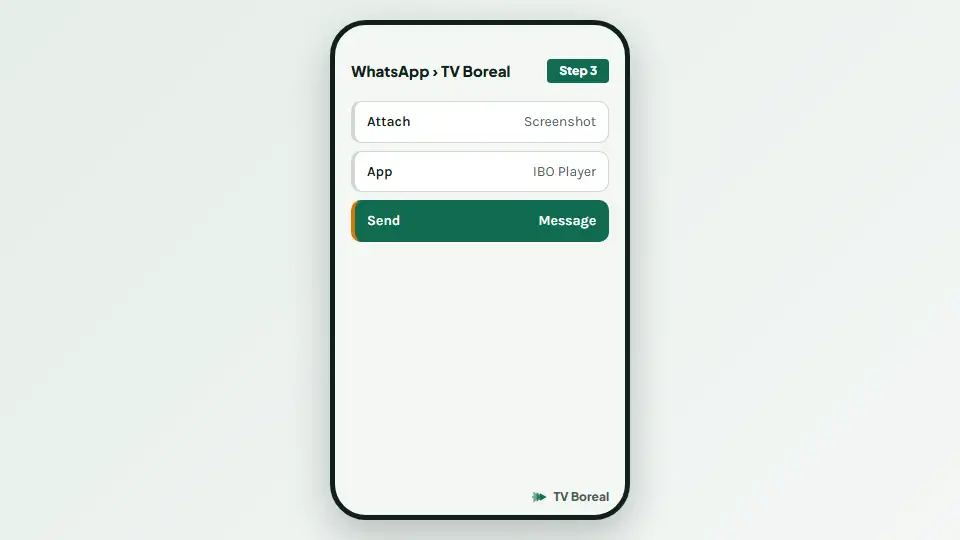
-
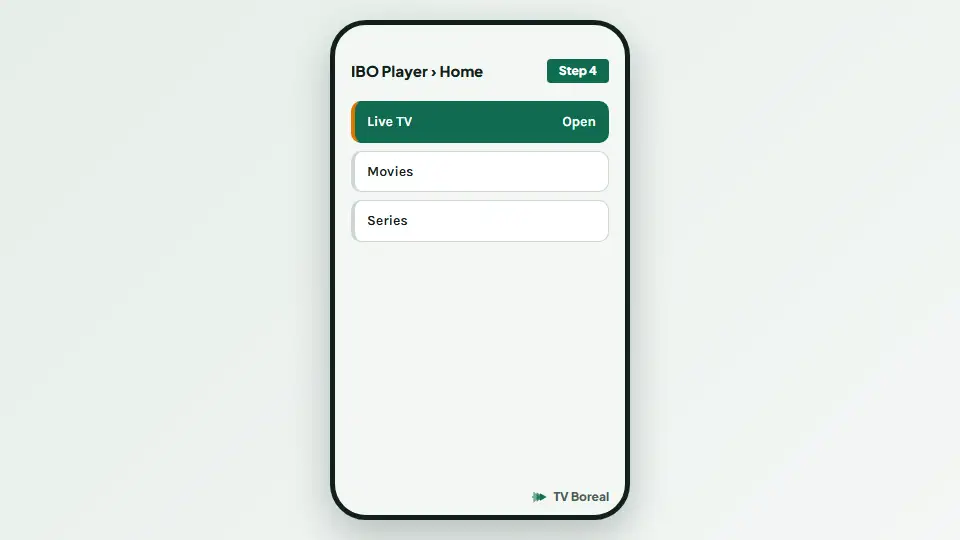
Fully close IBO Player, then launch it
Clear the app out of recent apps, then tap its icon. The channel list appears. Blank? Allow one more minute and restart it.
Paid app We activate it. Nothing to pay for the first 14 days. Then its developer charges a one-time fee for each device.
-
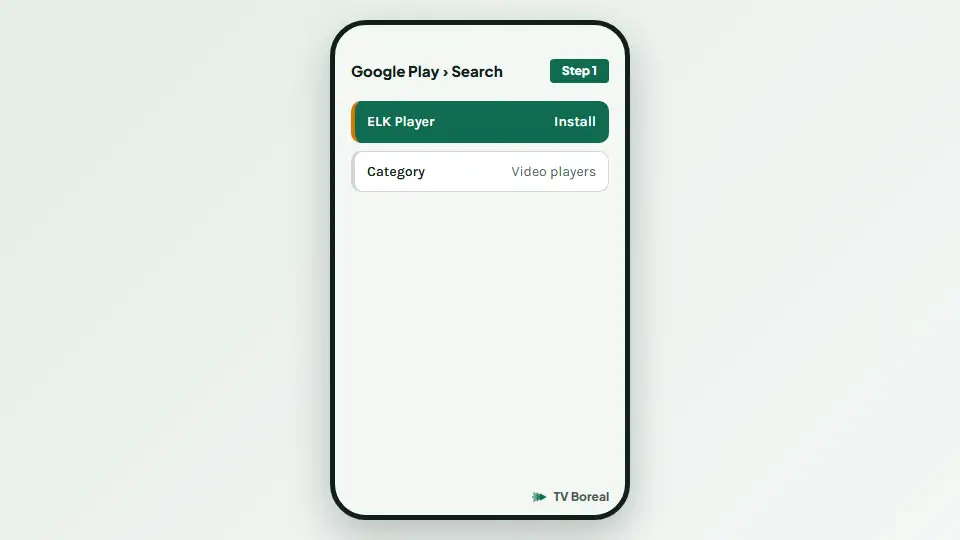
Install ELK Player from Google Play
Search Google Play for ELK Player and tap Install.
-
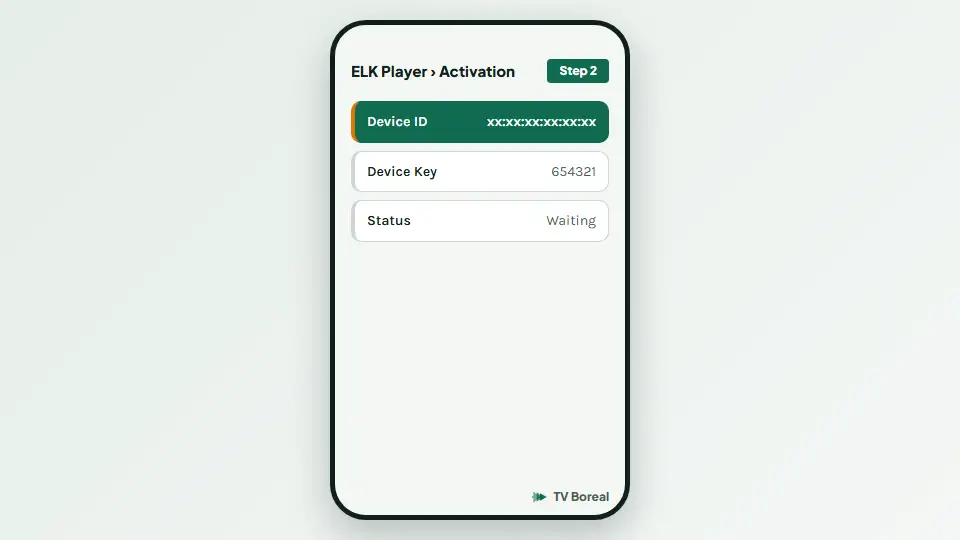
Screenshot the ELK codes
Start ELK Player. Its opening screen carries the Device ID and Key: save a screenshot.
-
WhatsApp the ELK screenshot
Send us the image along with the app name. Activation happens on our side, and we write back when the app is good to go.
Send it on WhatsApp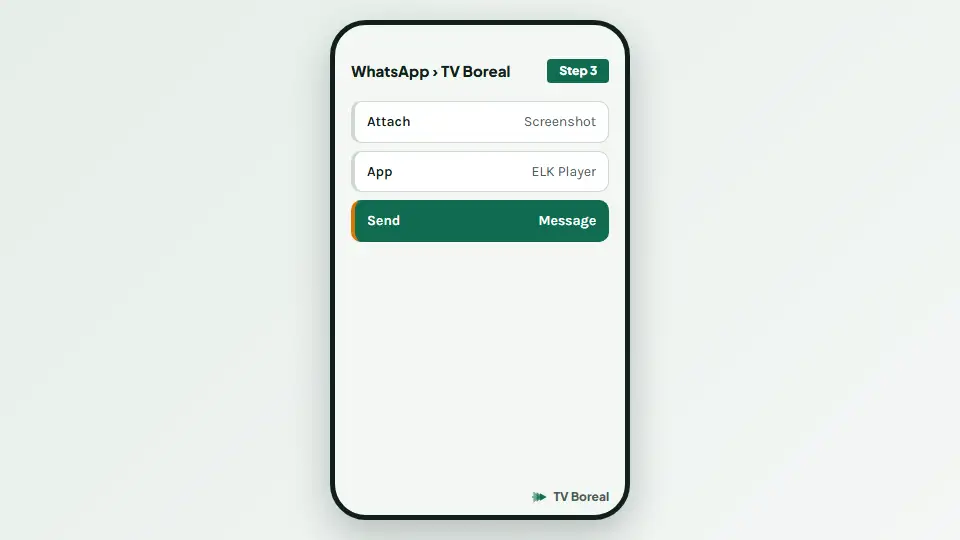
-
Restart ELK Player and watch
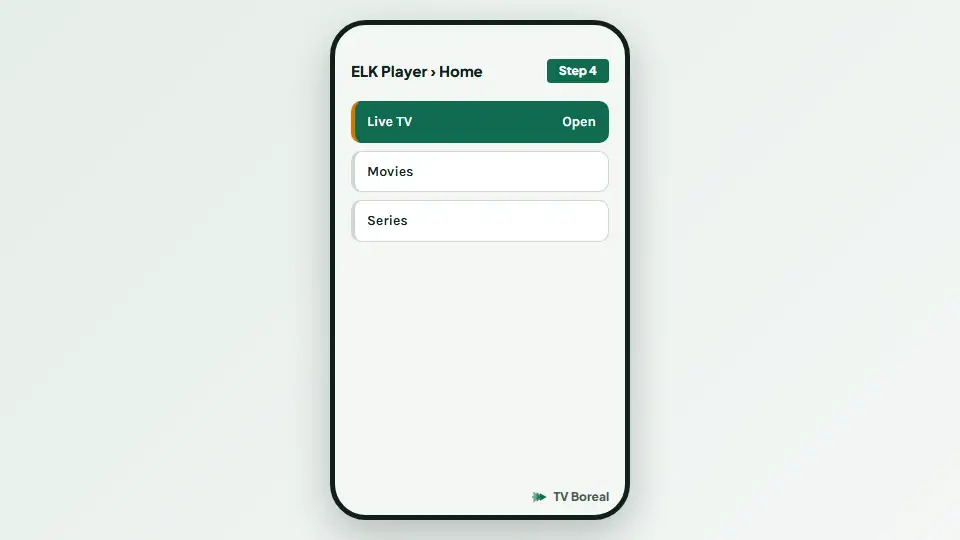
Shut ELK Player down completely, start it up again and choose a channel.
Free app You type it in. The app is free. Premium is optional, covers up to 5 devices and is paid to the app maker. Check today's price on TiviMate's official site.
-
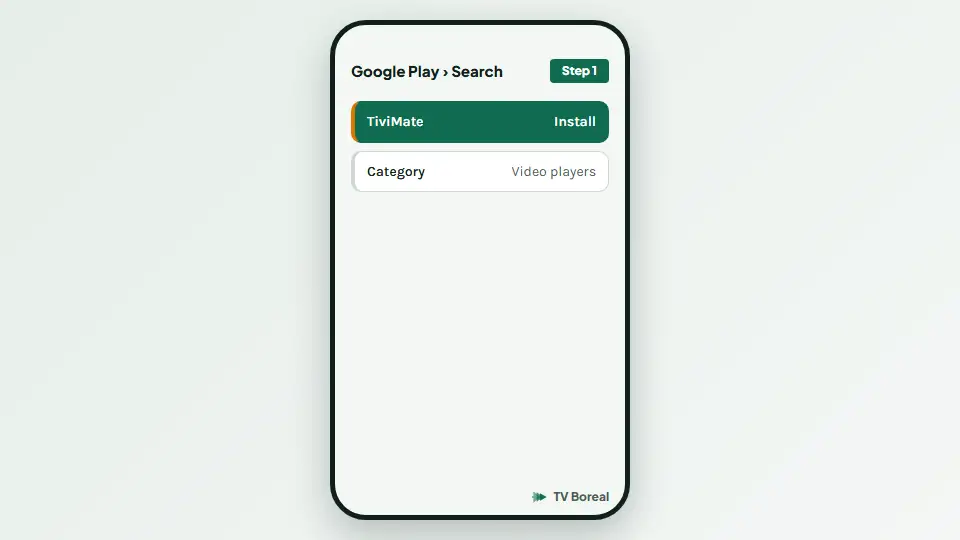
Download TiviMate from the Play Store
In the Play Store, search TiviMate and tap Install.
-
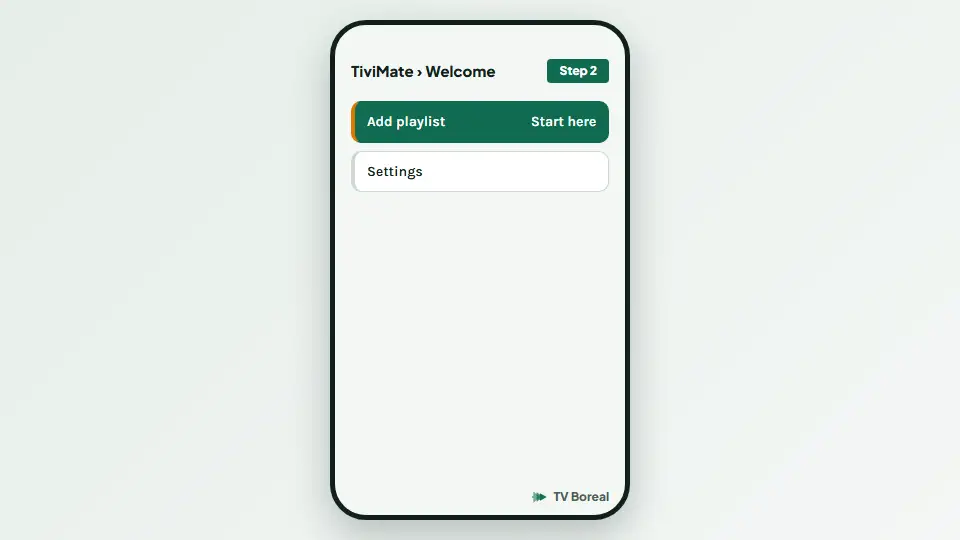
Tap Add playlist on the welcome screen
Open TiviMate. The welcome screen offers Add playlist: tap it. Holding the phone sideways gives the guide more space.
-
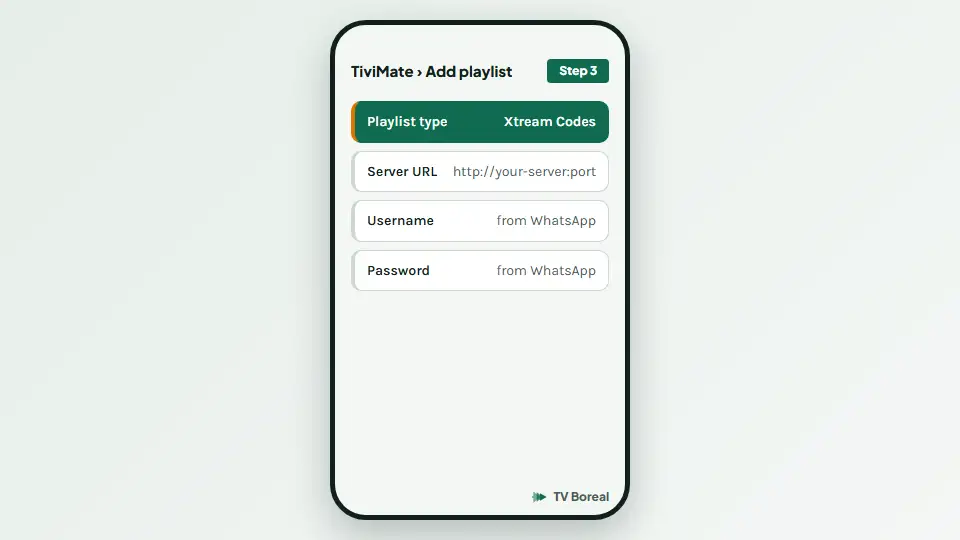
Choose Xtream Codes and fill in the login
Pick Xtream Codes, then fill in server URL, username and password as shown in our WhatsApp text. The M3U link is accepted too if you would rather use it.
-
Finish and let the guide fill in
Tap Next, then Done. Channels show up first. The TV guide completes itself within about a minute.

Free app You type it in. A free app, installed from the APK file on its developer's own site.
-
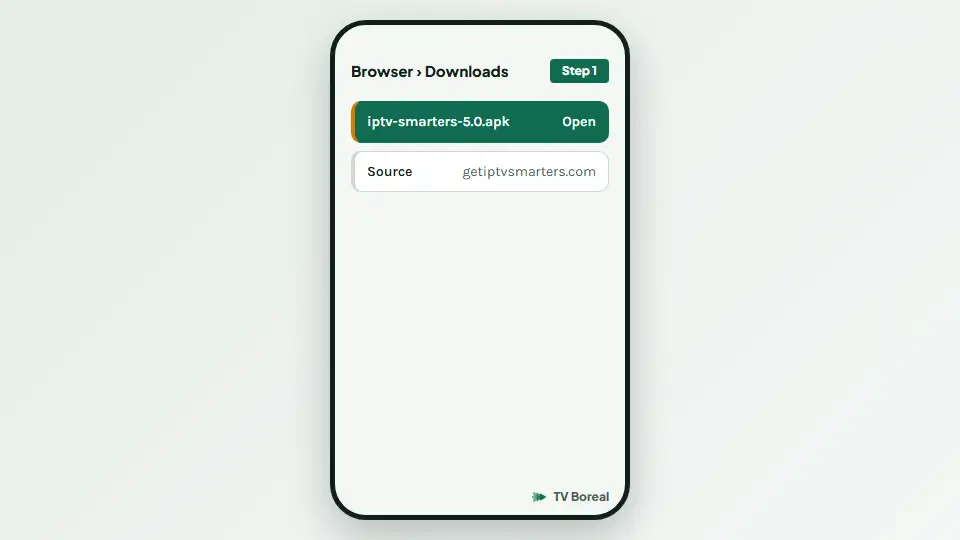
Fetch the APK from the developer
Open the link on this step in your phone's browser. It downloads the developer's own install file.
-
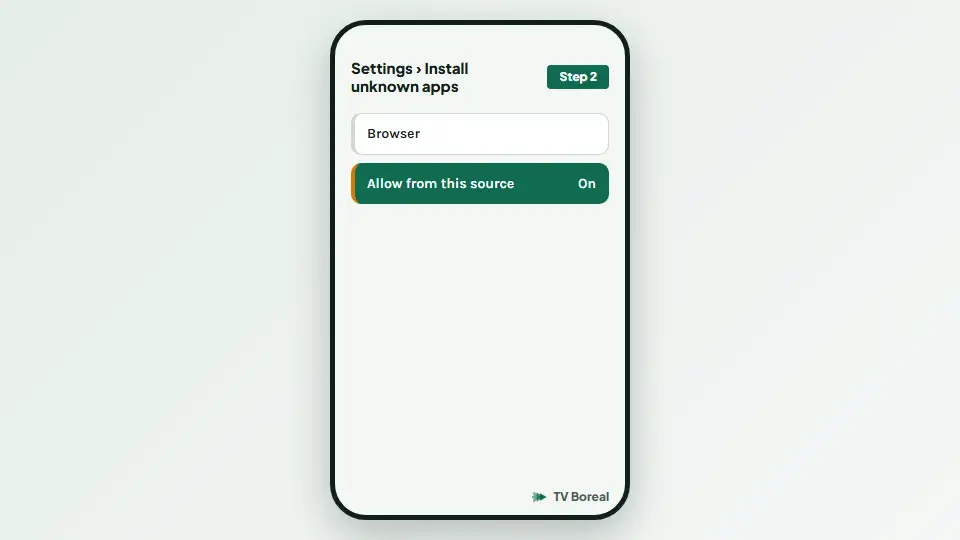
Give the browser one-time permission
Tap the downloaded file. Should Android object, let your browser install apps for this single file, then tap Install.
-
Sign in through Xtream Codes
Start IPTV Smarters, tap Login with Xtream Codes API. Type any name, add the server URL, username and password we sent, then tap Add user.

Before you start
Check four things before opening the store, and the setup moves quickly.
- A phone or tablet running Android 5.0 or newer, with some battery left.
- Wi-Fi for the setup itself. 4K wants 25 Mbps or better, held steady. Our article on internet speed for IPTV explains why.
- The WhatsApp message with your login. Inside you find four items: server URL, username, password, plus an M3U link. No plan yet? Our plans and prices start at $79.99 CAD for a year on one device, and the login comes on WhatsApp minutes after you order.
- About 5 minutes for the steps, closer to 10 with the app download.
It is a one-off job. Next time, you just tap the app. Own other screens as well? The setup guides hub has one walk-through per device.
Picking the right Android player
On a phone, IPTV Smarters is usually the easiest fit: one login page and big touch targets for thumbs. TiviMate runs too, and it shines on a tablet, but it was built with a remote and a living room TV in mind. People who would rather we handle activation should take IBO Player or ELK Player. Each of those two has a per-device fee, paid to its developer.
| Player | What it costs you | How the login gets in |
|---|---|---|
| IBO Player | Developer licence after 7 days | We activate it |
| ELK Player | One-time developer fee after 14 days | We activate it |
| TiviMate | Free, Premium is optional | You type or paste it |
| IPTV Smarters | Free | You type or paste it |
Change your mind later and nothing is lost, because the login is the same in all four. For more on Smarters itself, see our IPTV Smarters Pro page. Running an Android box under the TV? Our post on the best IPTV for Android TV box setups weighs the players there.
Sending the picture from your phone to the TV
Your phone can throw the picture onto the big screen in the lounge. Got a Chromecast plugged in, or a set with Chromecast inside? Play a channel and press the cast symbol in the player. Choose the TV: the stream jumps across and the phone turns into a remote. Both devices must sit on one Wi-Fi network.
No cast icon in your player? Pull down Quick Settings and use the Cast tile to mirror the full screen instead. Mirroring works, yet a player running on the TV is steadier. For everyday viewing, follow the Android TV guide or the Google TV guide for your box.
Tip: Before casting, check the phone and TV sit on the same home network, and keep the phone charging through long evenings. If the TV picture jerks, pick FHD or HD instead of 4K in the player.
Fixing common Android phone problems
Most snags fall into a handful of groups. Find yours below.
Android refuses to install the APK
Files fetched by a browser stay blocked until you approve them once. When the prompt shows, go to Settings, let your browser install unknown apps, return and tap Install. Turn the permission off again afterwards, and stick to the IPTV Smarters link on this page.
Careful: Grant the unknown apps permission for the one IPTV Smarters file from this page only, then switch it off. APKs passed around in forums or chat groups may be altered, and cracked copies of paid players can hide malware.
The player closes the moment it opens
From Google Play, update the player and Android System WebView, then reboot. Very old handsets struggle with current players, and anything below Android 5.0 is out of luck. Still crashing? In Settings, Apps, wipe the player's cache.
The picture stutters on mobile data
Mobile signal changes with place, hour and the number of bars you get. Hop onto Wi-Fi where possible, or choose FHD or HD over 4K. Turning Data Saver off for the player helps as well. The IPTV buffering post has a longer list.
The login keeps failing
Look for a stray space or one swapped character first. Copy the server URL alone, paste it, then do the same for username and password. Make sure the URL opens with http and keeps its port number when ours shows one.
Some channels have no sound
While the channel plays, open the audio menu and try a different track. Nothing? Switch the player's decoder setting from hardware to software, or back again. A forgotten Bluetooth headset can also be quietly taking the sound.
The battery runs down fast
Video keeps the screen, the chip and the radio working hard, so it always costs power. Dim the screen, close background apps and favour Wi-Fi over mobile data. Battery saver may drop the picture quality, so on a tablet, simply plug in for a long night.
Someone at home on an iPhone? Our iPhone and iPad guide does the same job through App Store players.
Questions about this setup
Which Android app suits a small phone screen?
IPTV Smarters, for most people. Its single login page and touch-first menus feel natural on a phone. IBO Player is the pick if you want us to do the activation instead of typing. A tablet gives more room, so players built around a TV guide feel comfortable there. One login works in all of them, so testing two apps costs nothing.
Can the phone and the TV play at the same moment?
Yes, when your plan includes two devices. One device means one screen at a time, two devices two screens, three devices three. A phone, a tablet and a TV box each count as one. Put a player on every device and enter the login we sent you, or send the Device ID and Key for activated apps.
Will a tablet work the same way?
They do. A tablet uses the very same apps and steps as a phone, and the wider screen makes the TV guide far easier to read. Turn it to landscape for extra space. Android 5.0 is the minimum. Keep the charger close on long evenings of viewing.
Can I trust the IPTV Smarters APK?
It is when you use the link on this page, which serves the developer's own file from getiptvsmarters.com. Skip copies passed around in forums or chat groups. Android asks permission for your browser to install apps: grant it for that one file, and switch it back off as soon as the install is done.
How much mobile data does it use?
Quite a lot. HD for one hour may run to a few gigabytes, and 4K takes more. With a capped mobile plan, keep long viewing for home Wi-Fi and lower the player quality while out and about. Moving from 4K to FHD or HD saves the most data.
Do I need a Google account?
Only for the apps you install from Google Play, such as ELK Player. IPTV Smarters comes as an APK from its developer, so it installs without the store, and IBO Player offers an APK too. Whichever route you take, your TV Boreal login works the same way inside the app.
More setup guides
IPTV on iPhone and iPad, step by step
Live TV, movies and series fit nicely on an iPhone or iPad, whether you sit on the couch, in the kitchen or at the cottage.
IPTV on Android TV: setup with Downloader codes
Setup steps for Android TV sets, NVIDIA SHIELD and Android boxes.
IPTV on Google TV and Chromecast with Google TV
This page is for Chromecast with Google TV, the Google TV Streamer and other Google TV devices.