IPTV on iPhone and iPad, step by step
Live TV, movies and series fit nicely on an iPhone or iPad, whether you sit on the couch, in the kitchen or at the cottage. This page gives four players, each with its own few steps. Do one of them once, and after that the channels are a tap away.
Short answer
Four App Store players work. IBO Player and ELK Player need only a screenshot of the Device ID and Key, which we activate. Smarters Player Lite and UHF take the Xtream Codes login you paste in. Plan on about 5 minutes.
- Device
- iPhone and iPad (iOS and iPadOS)
- Time needed
- About 5 minutes
- Difficulty
- Easy
- Apps covered
- IBO Player, ELK Player, Smarters Player Lite, UHF
- What you need
- Your login from WhatsApp
Your app, step by step
We suggest IBO Player. Switch tabs to see the other apps, one full walkthrough per tab.
Paid app We activate it. No charge for the first 7 days. After that its developer sells a yearly or lifetime licence for each device, paid as an in-app purchase.
-
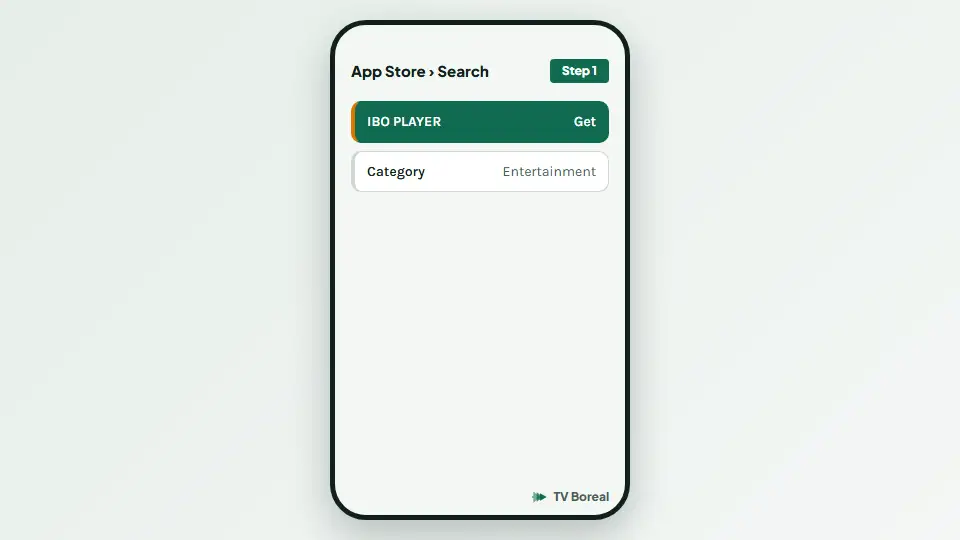
Find IBO PLAYER in the App Store
Tap the App Store link on this step from your iPhone or iPad. Look for the name IBO PLAYER in capitals, then tap Get. Copycats with near-identical names exist, so only this listing counts.
-
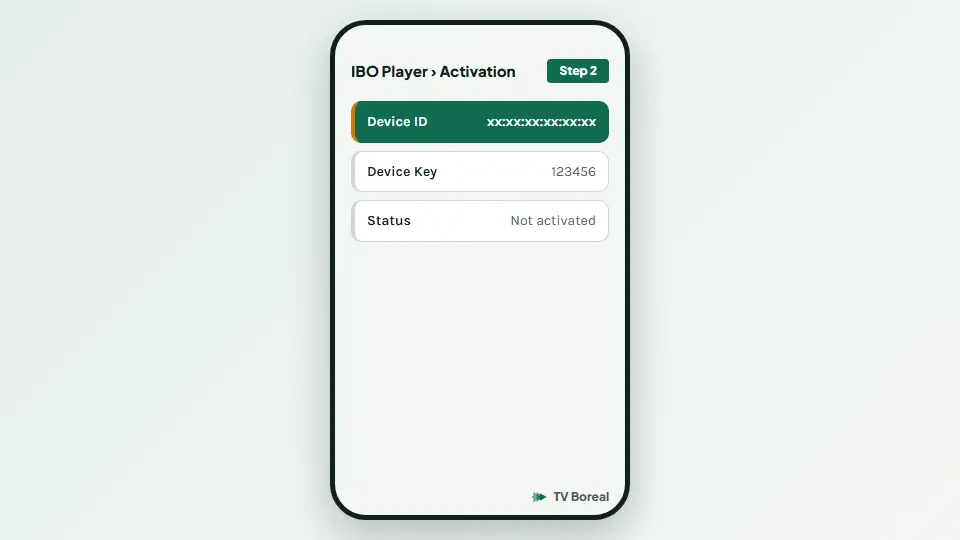
Grab a screenshot of the ID screen
Opening the app brings up two codes, a Device ID and a Key. Squeeze the side button and volume up at once: that saves a picture of them.
-
WhatsApp that picture to us
Attach the screenshot in a WhatsApp chat with us and add a word saying IBO Player. Our reply confirms the link to your plan, normally a few minutes later.
Send it on WhatsApp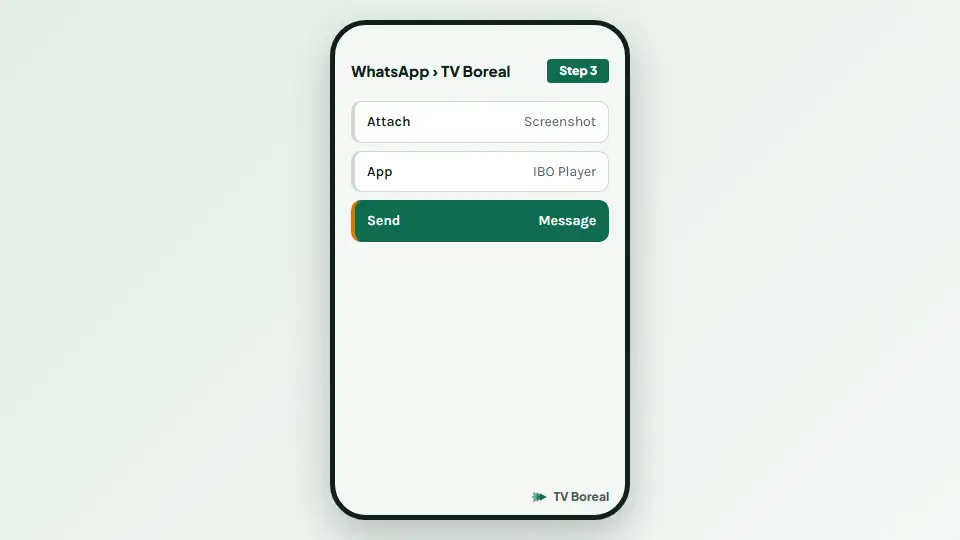
-
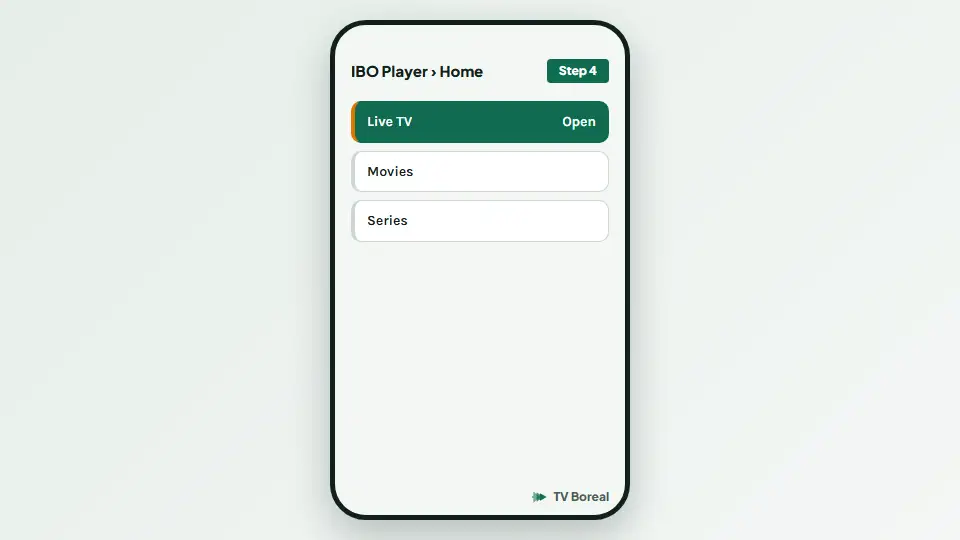
Open IBO Player a second time
Flick the app off the app switcher and tap its icon. Channels now fill the screen. Blank list? Wait sixty seconds, then try once more.
Paid app We activate it. No charge for the first 14 days. After that its developer asks for a one-time fee for each device.
-
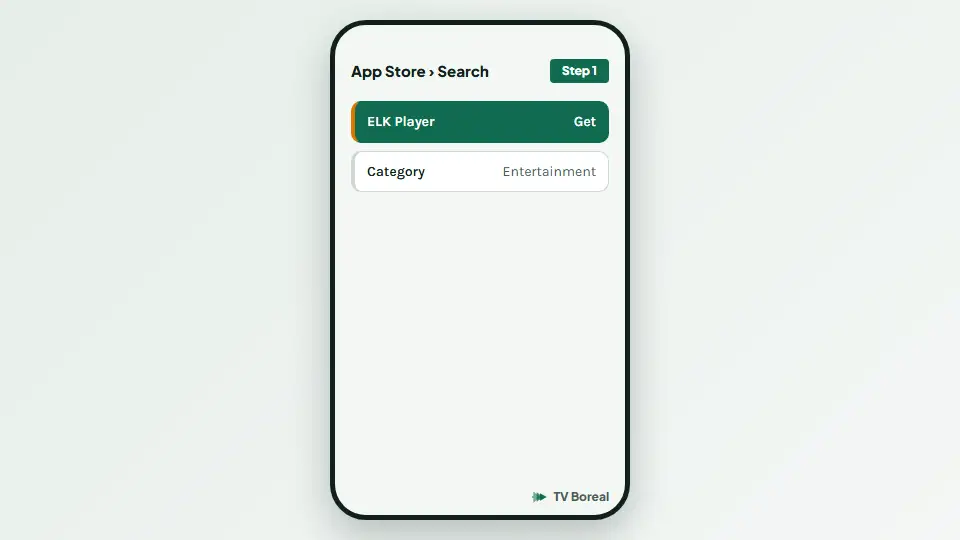
Search the App Store for ELK Player
Type ELK Player in the App Store search bar and tap Get.
-
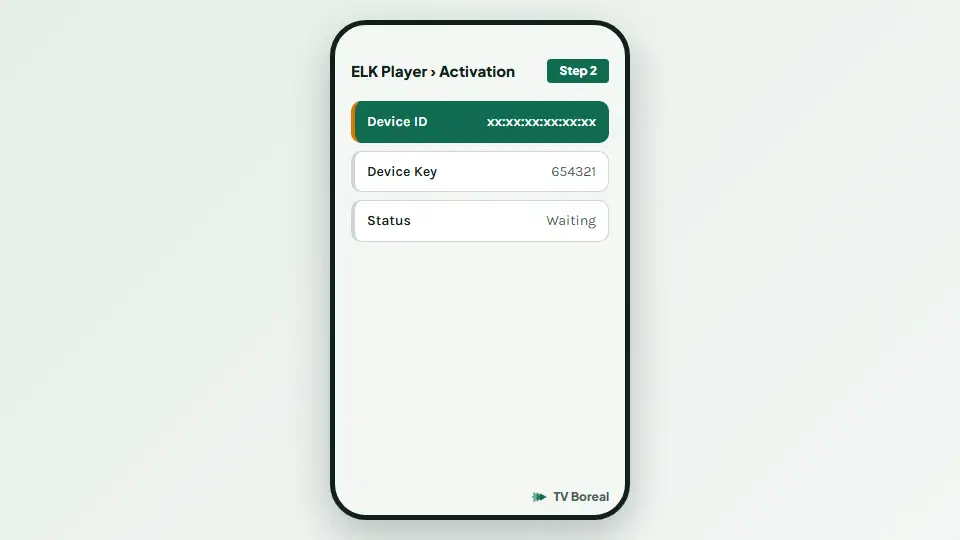
Save the ELK activation screen
The first ELK Player screen shows a Device ID and a Key. Screenshot it.
-
Pass the ELK screenshot to us
Drop the picture into WhatsApp and name the app. We turn ELK Player on for your plan and tell you when it is live.
Send it on WhatsApp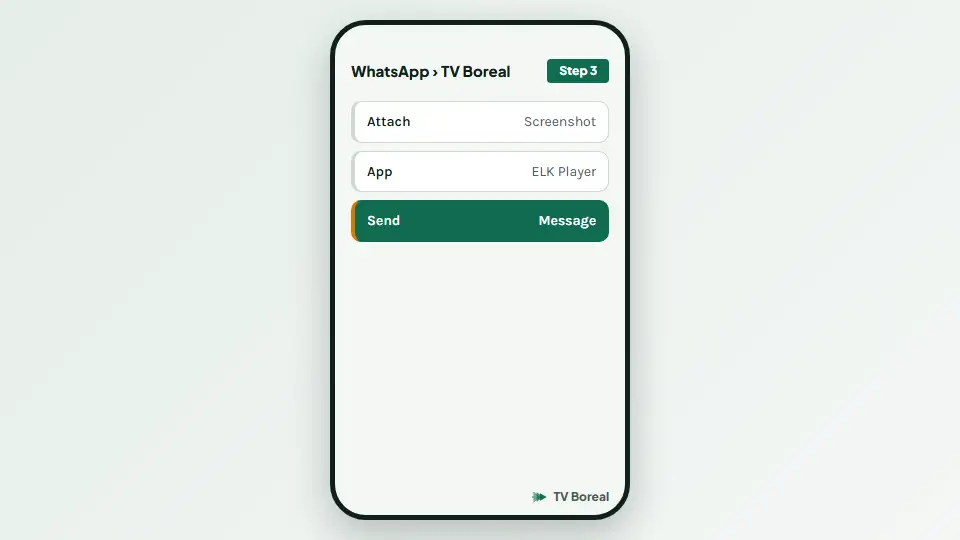
-
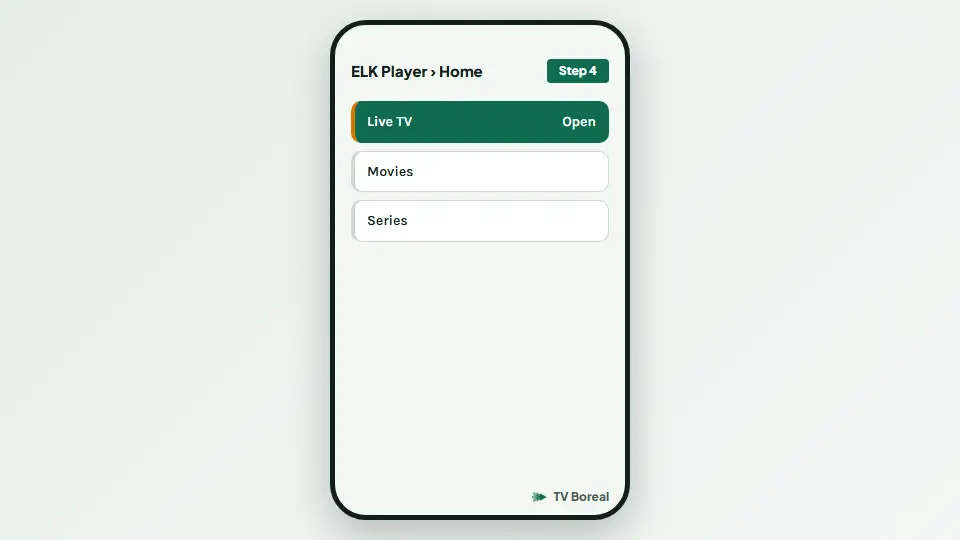
Back into ELK Player
Swipe it away in the app switcher, launch it again and choose a channel.
Free app You type it in. Free to install. It is the name IPTV Smarters goes by on the App Store.
-
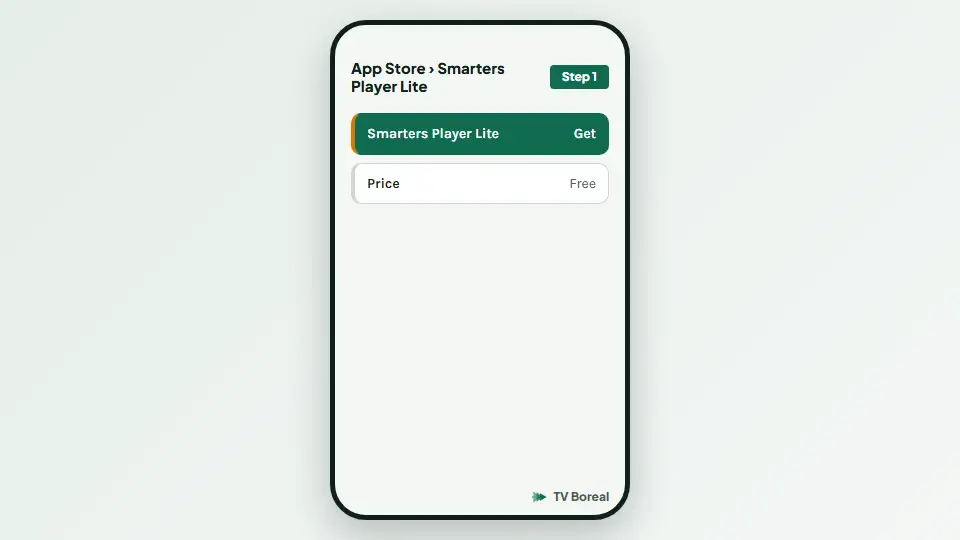
Add Smarters Player Lite to your device
The App Store link on this step leads straight to it, and searching Smarters Player Lite works too. Tap Get.
-
Choose the Xtream Codes login
The first launch shows terms: accept them. A list of login types follows. Tap Login with Xtream Codes API.

-
Type a name, paste the login, tap Add user
Any profile name will do, Home for example. Paste username, password and server URL one by one from our WhatsApp text, then tap Add user. Give the channel list roughly a minute.

Free app You type it in. Free to use. An optional Pro plan is sold separately by its developer.
-
Install UHF
Follow the App Store link on this step or search UHF, then tap Get.

-
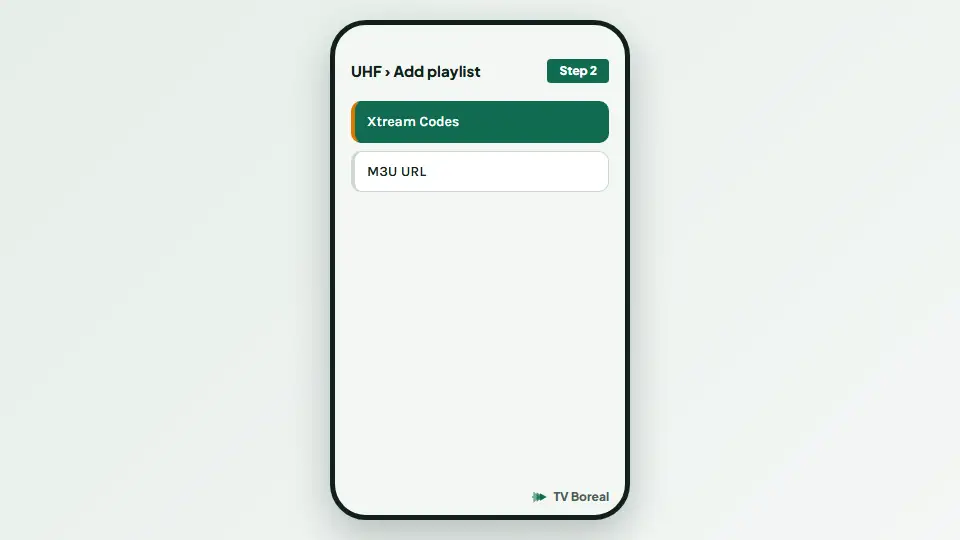
Start with Add playlist
In UHF, tap Add playlist. Xtream Codes is the usual pick. M3U works as well if the single long link suits you better.
-
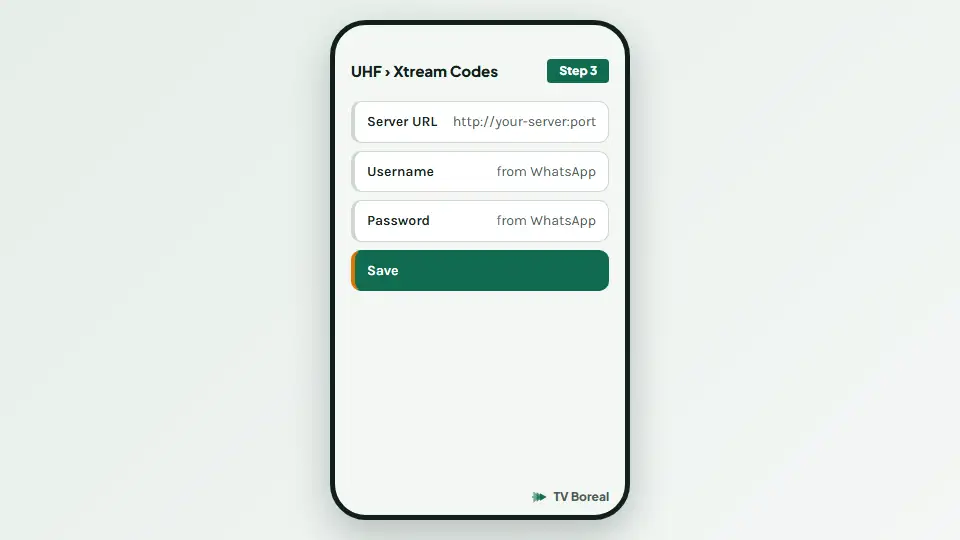
Fill the three fields and tap Save
Server URL, username, password: paste each one from our message. Tap Save. Channels arrive first and the guide follows a little later.
Before you start
Have these four things ready first, and the whole job stays short.
- Your iPhone or iPad, with iOS or iPadOS updated and an Apple ID signed in to the App Store.
- Wi-Fi rather than mobile data for the first setup. 4K wants 25 Mbps or better, held steady. The internet speed for IPTV post goes into the detail.
- The WhatsApp message with your login. It lists four items: server URL, username, password, plus an M3U link. Still need a plan? Plans and prices start at $79.99 CAD for a year on one device, and the login lands on WhatsApp minutes after you order.
- Five minutes for the steps, maybe ten counting the download.
After this first pass, the app remembers everything. Other screens in your home are covered in the setup guides hub.
Choosing a player for your iPhone or iPad
Pick IBO Player if long passwords on a touch keyboard drive you up the wall. You send us its Device ID and Key, and the activation happens on our side. Prefer to pay nothing for the app? Neither Smarters Player Lite nor UHF charges for the app, and you paste the Xtream Codes login a single time. UHF looks and feels like it was made for iOS. ELK Player is the backup, with its own layout.
| App | App cost | Who does the login |
|---|---|---|
| IBO Player | Developer fee after 7 days | Activated by us |
| ELK Player | Developer fee after 14 days | Activated by us |
| Smarters Player Lite | Free | You paste it |
| UHF | Free, Pro is optional | You paste it, Xtream Codes or M3U |
Switching later is painless, because all four read one login. Smarters Player Lite is how IPTV Smarters Pro appears on the App Store, and that page has more on the app.
Putting the picture on a TV with AirPlay
AirPlay sends your iPhone or iPad picture to an Apple TV or any AirPlay smart TV. Begin playing a channel. If the player has an AirPlay button, tap it. If not, swipe down for Control Center, choose Screen Mirroring and select your TV. Phone and TV have to share one Wi-Fi network.
It is great for one film or a single game. Every night is another story: the phone must stay awake, and your Wi-Fi carries the load twice. A player on the TV is the calmer setup. The Apple TV setup guide uses these four apps on tvOS, while Samsung and LG owners have the smart TV guide.
Tip: Long session ahead? Keep the phone on its charger, joined to the TV's Wi-Fi. Stutter on the big screen usually settles once you drop the player from 4K to FHD.
Fixing common iPhone and iPad problems
Nearly every issue traces back to three things: the wrong app listing, a login typo or weak Wi-Fi.
Can't find the app in the App Store
Type the full app name. IPTV Smarters hides under the name Smarters Player Lite. A few apps are not sold in every country's store, so look up the store country tied to your Apple ID: Settings, tap your name, then Media and Purchases. Easier still, use the links inside the app steps.
Careful: Fake look-alike players sit in the App Store too. Stick to the listings this guide links, read the name twice before tapping Get, and give your Device ID and Key to us alone, on WhatsApp.
Login rejected
Suspect a stray space or one swapped letter first. Copy the server URL on its own and paste it, then repeat for username and password. Make sure the URL opens with http and still carries its port number if ours shows one. IPTV login details breaks down each piece.
Freezing or buffering
Sit nearer the router. In Settings, switch Low Data Mode off for your home network, and set the player to FHD rather than 4K. On mobile data, iOS or your provider can throttle video. Rebooting phone and router fixes most short dips, and IPTV buffering has the longer list.
Silent phone, silent stream
A few players respect the Ring and Silent switch, and on recent models the Action button's silent setting too. Turn silent off and push the volume up with the side buttons or Control Center. Bluetooth earbuds still paired in a pocket can steal the sound as well.
No channels in the list
Drag the list down to refresh. Next, swipe the app off the app switcher and launch it. A slow line may need a full minute for the first load. Nothing yet? Recheck the login, or WhatsApp us a screenshot so we can check things from our end.
IBO Player stuck on its code screen
It is waiting for activation. Once the Device ID and Key screenshot reaches us on WhatsApp and we confirm, quit and relaunch the app. Channels load at that next start, normally minutes after your message.
An Android phone in the family as well? The Android phone guide runs the same way with Google Play apps.
Questions about this setup
Which iPhone app is the least work to set up?
IBO Player. We activate it from the Device ID and Key, so the login never has to be typed on a small keyboard. For a free route, Smarters Player Lite and UHF accept a login pasted from WhatsApp. Since all four players read one login, moving from one to another later takes a few minutes and no new plan.
Will I pay anything for these apps?
Two are free: Smarters Player Lite, and UHF, which has a paid Pro tier as an extra. With IBO Player you get 7 days and ELK Player 14 days before each asks for its own per-device fee. That money goes to the app's developer. It is not part of your TV Boreal plan, which pays for the channels.
Will one login cover my iPhone plus a TV?
They can, as long as your plan has enough devices. On a 2-device plan, two screens play at once, say an iPad in the guest room plus a Fire TV Stick by the main TV. Each screen gets its own player with that login. Because IBO Player and ELK Player switch on device by device, send us a Device ID and Key from every one.
Is mobile data a good idea?
Only in small doses. Video is heavy: HD for one hour may run to a few gigabytes. Home Wi-Fi is the better default. Away from it, turn the quality down in the player. Mobile networks, iOS and your provider may also slow video, so FHD tends to look steadier than 4K on the road.
Is the iPad setup any different?
Not at all. The four apps, the steps and the login are the same on an iPad as on an iPhone. What changes is the screen: a bigger picture and more space for the TV guide. Keep iPadOS current so the App Store serves the newest version of each player.
How do I watch on the living room TV?
Through AirPlay. Play a channel, then tap the player's AirPlay button, or use Screen Mirroring in Control Center and pick an Apple TV or an AirPlay smart TV. Both need one Wi-Fi network. For a TV you use nearly every evening, installing a player on it beats mirroring for a steady picture.
More setup guides
IPTV on Apple TV: setup with four apps
For Apple TV HD and Apple TV 4K on tvOS.
IPTV on Samsung and LG smart TVs, step by step
Built for Samsung sets on Tizen and LG sets on webOS.
IPTV on an Android phone, step by step
The phone in your pocket is often the quickest screen to get going: no remote, no HDMI cable, just an app.